The following procedure is a recipe for the Turbolog 4 user who was on a DXpedition and now wants to manage QSLing himself. We assume the expeditioneer has communicated to QSL directly via PayPal and promised to upload the requests to LoTW within reasonable time. Thus, applicants would send their QSL requests along with a financial contribution through the PayPal system. The User will receive notification accordingly from PayPal to his Email account. Typically he will process the requests in suitable bunches and proceeds as follows:
Step1:
Open the DXpedition Log (most likely a secondary log ) in Turbolog4. Enter the Call of an applicant in the Call field and apply the usual procedures to surface matches in the logbook frame. Next, the search result(s) found need to be highlighted. Now press the QSL button on the top of the logbook frame. The following menu will pop up:
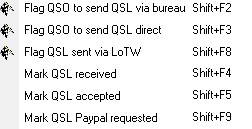
Figure 424: QSL Operations
Press the item Mark QSL PayPal requested or Shift+F9 . As a result a letter P (=PayPal) will show up in the QSL to send column of the log.
Continue with the next Call till the end of the pile.
Step 2:
If the user thinks he has processed a good portion of the potential requests he should proceed as follows: Press the Fiter button on the top of the logbook frame. The Filter will collect all P-marked QSO records since they may be widely spread all over the log. The following menu will pop up:
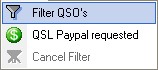
Figure 424: Filter Items
Select the QSL PayPal requested 0ption which yields an example result as shown in the following screen shot:
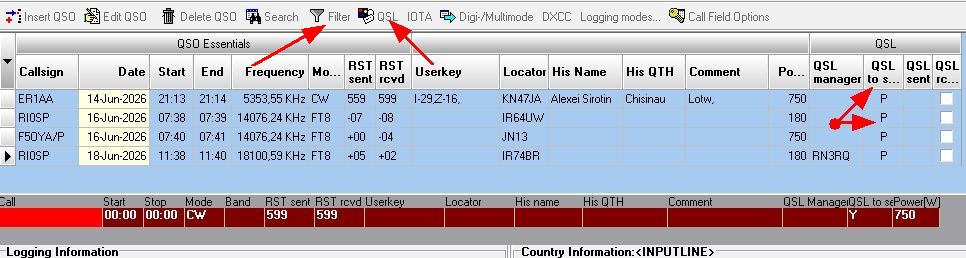
Figure 425: Example of PayPal requested QSL records
Now Press Ctrl+A with mouse over the log frame. This command will highlight All selected QSL records. They are now marked for the export to LoTW.
Important: Make sure the selected QSL records remain highlighted till the end of this operation (see red arrow at left side of screen shot below ).
Now you must use the standard export procedure to LoTW. The recommended procedure is outlined in the topic on Automated E-mail Export to LoTW.
After the export to LoTW is successfully completed the QSL records on display must be marked as QSL sent in order to prevent the selected records from being exported again with the next bench of requests. For this purpose use the option Flag QSL sent via LoTW from the QSL button or the Shft+F8 command, see third screen shot above. The final example result is depicted below:
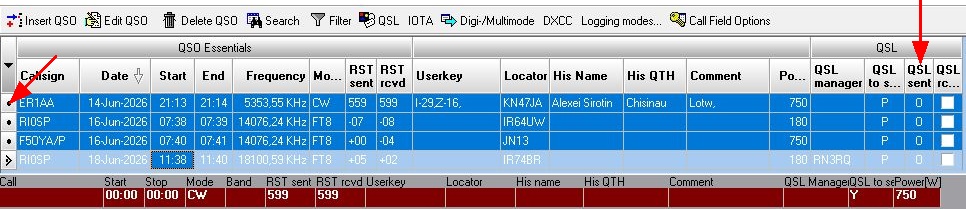
Figure 426: Example of PayPal requested QSL records: Flag O in QSL sent column
Done!
Log can now be reverted to normal layout.
Step 3:
If the QSL manager should decide after some time has passed to send bureau cards he can use the QSL Operation facilities ( Ctrl+Q ) from the Options menu. This facility also provides Multi QSL Label printing ( Ctrl+M ) and offers many filter options in order to segment the QSL printing process.
This topic was last edited on Friday, 21-Aug-2026, at 22:10