This topic describes the access to Web SDRs from inside TurboLog 4 and the usage of this facility.
General Remarks:
Progress in Software Defined Radio ( SDR ) technology now allows to build radios on very small hardware platforms ( e.g. Tyny SDR, KIWI SDR, Raspberry-Pi, etc. ) and even more to connect these devices to the internet and make them accessible to the Ham Radio community. This is of great interest for the growing number of operators suffering under nasty electromagnetic interferences ( EMI ) caused by various sources like photo voltaic installations, switched power supplies, LEDs ... just to mention a few.
The basic idea and benefit is to connect to a Web SDR station if you struggle with severe noise conditions on your receiving site in hope the station you want to work can be received with a better signal-to-noise ratio at a quiet remote site. Thus you could call and transmit as normally and you listen via the Internet. Of course this kind of operation requires to find and pick a suitable Web SDR provider.
In order to ease this task TurboLog 4 assists you to directly connect a Web SDR station from within the program and to select it from a list which we have compiled from
various written publications in books, radio magazines and worldwide internet search. Thus our approach is very similar to that which we provide for the Telnet Packet Radio Clusters.
We have tested every Web SDR in our database ( see below ) and have commented our results. This should give you a good piece of advice where to go to. The database also shows the locator
of the Web SDR site and informs you of the bands it provides. All information is to the best of our knowledge but without any guaranty. If you get to know a site not listed in our database you
can add it easily to the database yourself. However, we would appreciate this data as well in order to provide it for all TurboLog 4 users in the next update version.
There is no fun without risk....
•Unfortunately all Web SDR sites do not provide the secure https://... protocol. Thus, the communication path and all content is open for eaves dropping and the full range of potential internet attacks. Be careful and aware of these risks. Since there is nothing we can do about it from our side there cannot be any liability on behalf of TurboLog Communications for any sort of incidence.
•Some sites want some sort of user identification, the call appears to be adequate. However, Email address? ...Hmmmmh why that??
•Up to date internet browsers may not accept the old http://.. protocol at all, others will warn you and prompt you to agree in exceptions.
•Some sites will not play any sound without you having installed the complete JAVA suite. This is a very clumsy memory consuming package. Furthermore, JAVA tends to overwrite in-/output formats, i.e. at audio interfaces, styles, etc. Most importantly, because of JAVA's far ranging power, it was the entry port of many an internet attack in the past.
•Please keep an eye on these warnings and be alerted. You better refrain in case you do not trust!
Getting started:
Setting up the Web SDR facility:
From the Configuration menu please select Log Setup and move into the Basic Properties item. Opening the Internet branch and finally its item Web SDR will surface the following tab sheet:
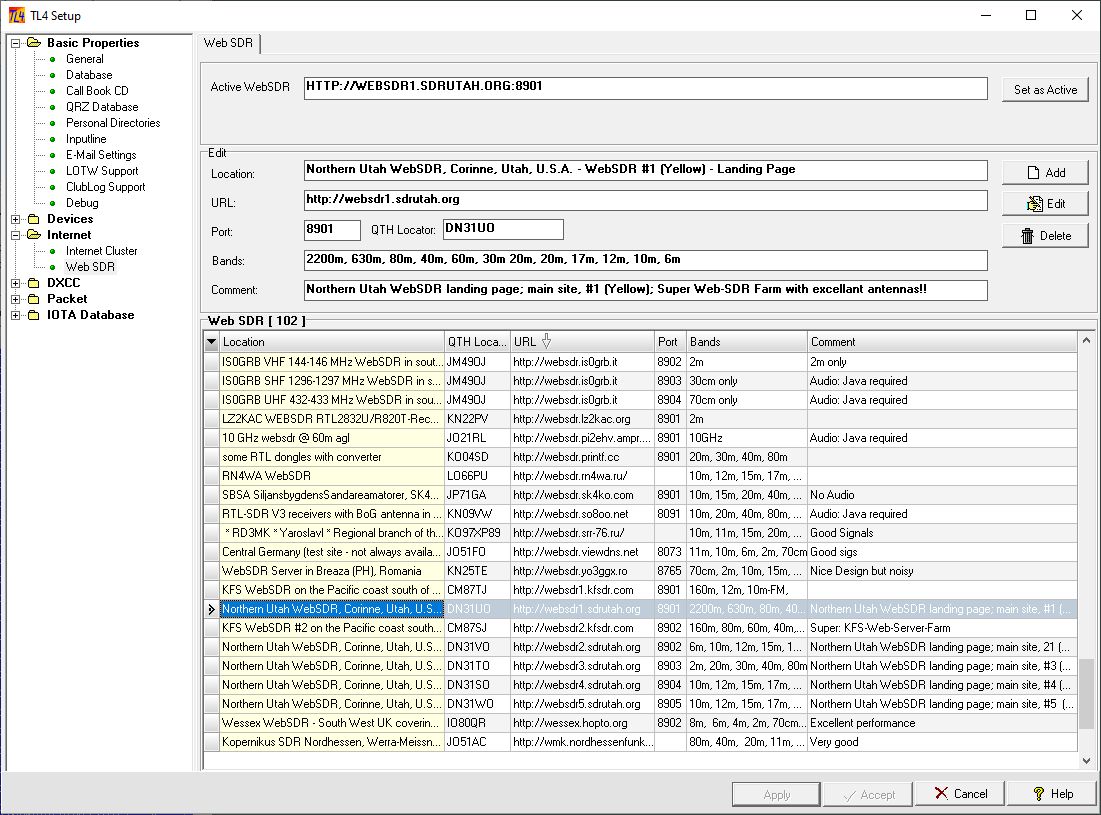
Figure 270: Web SDR Connect Scripts
The main body of the tab sheet contains the Web SDR database. You can scroll through the database while the field contents of the highlighted record are displayed in the Edit frame above.
Please note the arrow in the column header:
It indicates that the table is sorted by the content of that particular column. This is an extremely useful feature, in particular to find out sites which might be suitable for you. The following fields can be sorted:
▪Location
▪QTH Locator (!!)
▪URL
For sorting just left click the column header.
The following data is available:
▪Location
▪URL of the site
▪Port number
▪QTH Locator
▪Bands
▪Comment
All of these fields can be edited by pressing the EDIT button. Any text entered will be saved in the database after having pressed the EDIT button again.
Press the Set as active button if you want to become the highlighted site your choice.
Pressing the Delete button will remove the highlighted Web SDR site from the database.
If you would like to add another Web SDR site which you got to know the necessary data from just press the Add button and enter the data.
BUTTON Summary:
| Accept | Accepts inputs and leaves frame. |
| Set as active | Selected Web SDR to become active |
| Apply | Puts changes into action. |
| Cancel | Cancels all changes if not in action yet and leaves frame. |
| Help | Opens (this) help window. |
| Add | Add a new database entry. |
| Edit | Edit database field on highlighted line. |
| Delete | Deletes highlighted database entry. |
This concludes the necessary operational preparations and entries. You can now connect the selected Web SDR site by performing the following steps:
Just move to the Logbook's Menu which is on top of the logbook window, see screen shot below. On the right edge of the Action Review Tool Bar click the Web SDR icon.

Figure 270: The Logbook's Menu Bar
You will see your Internet browser being started or coming up with a new web page ... and your selected Web SDR.
Like all databases in TurboLog 4 the Web SDR database is equipped with a customization facility. A right mouse key click over the database table will surface the following menu:
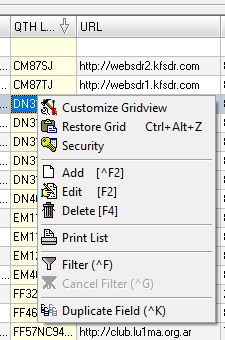
Figure 271: Web SDR customization menu
Of particular interest is the Customize Gridview item which yields the following screen shot:
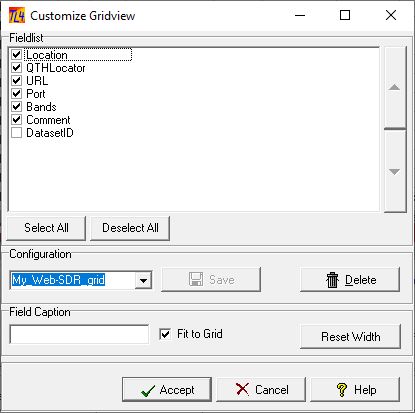
Figure 272: Web SDR Grid View customization menu
If you want to customize the default layouts you should first uncheck the Fit to Grid box. Then re-arrange the column widths by dragging the vertical column separator lines in the column header.
Finally save your configuration and check the Fit to Grid box.
This topic was last edited on Friday, 21-Aug-2026, at 22:10